
What you need
- A PC with Windows 10 or 11 (64-bit). For Windows 7, 8 or a 32-bit PC, take the second download on the download page.
- An internet connection. The tool downloads the settings for your exact printer model.
- A USB cable from the printer to the PC. Wi-Fi works on a few models only; most need the cable.
- About five minutes.
The Windows screenshots (steps 1 to 3) were taken on 30 September 2026 on a Windows 10 PC with a real Epson L805 whose Main pad was full. The app screenshots (steps 4 and 5) show VNIT Reset Tool 3.17.0 (October 2026) in its demo mode, with a simulated Epson L3210.
Step 1: the error you are seeing
When the waste ink counter is full, the printer stops and Windows shows a message from the Epson driver when you try to print:
Service required. A printer’s ink pad is at the end of its service life. Please contact Epson Support.
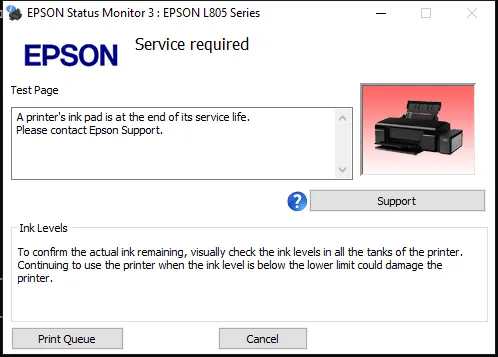
The printer’s lights also blink (the pattern depends on the model). The printer is not broken. It counts how much ink it has flushed into its pads and stops at a set limit. What this message means.
Before you go on, cancel the print job that is waiting (press Cancel in this window, or open the print queue and cancel it). A waiting job can keep the printer busy.
Step 2: download and unzip
- Open the download page and press Download .zip on the first card, Windows 10 / 11 (64-bit).
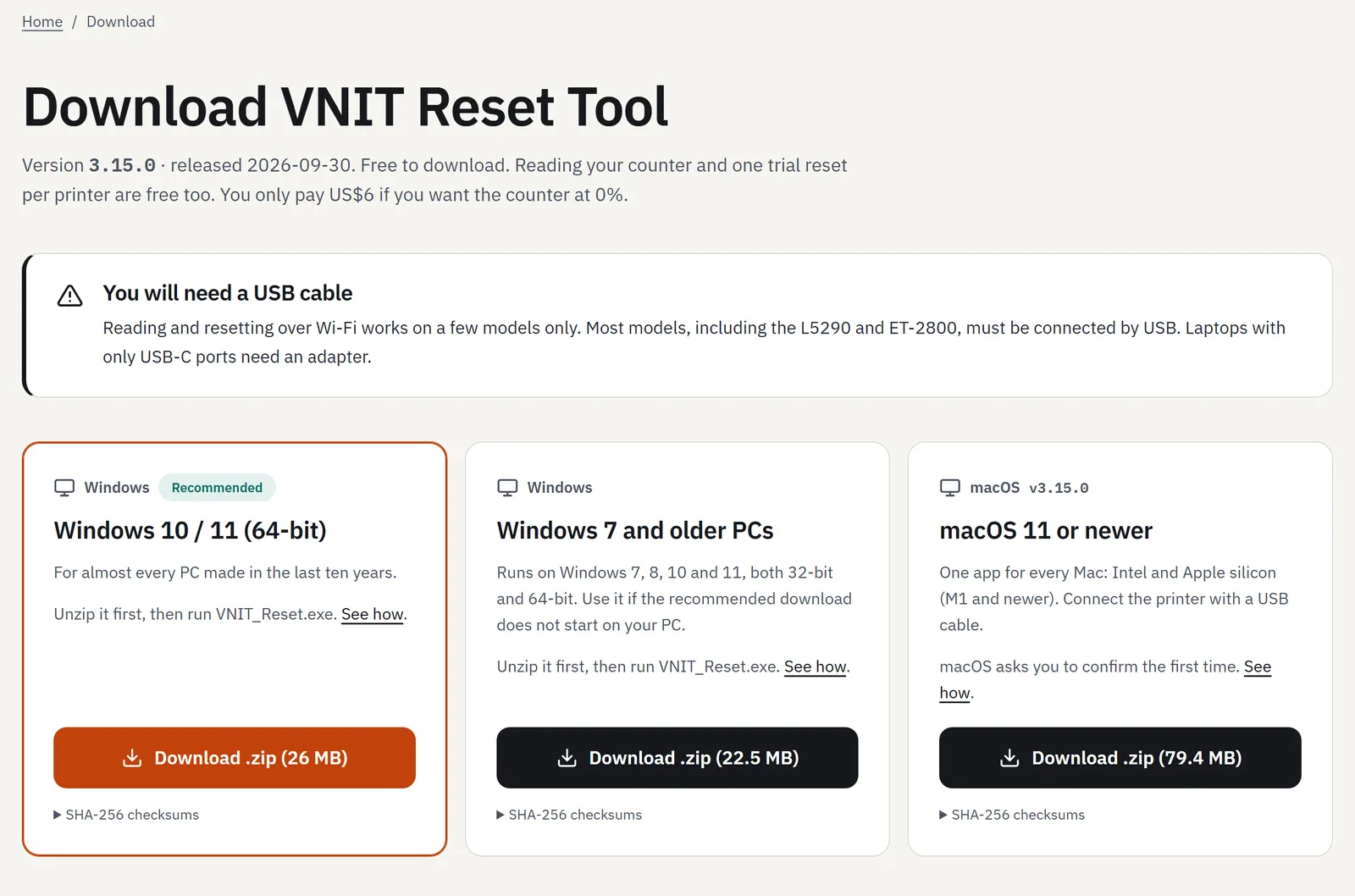
- Open your Downloads folder. Right-click the zip and choose Extract All…, then Extract. If you have WinRAR or 7-Zip, their Extract to “VNIT_Reset_…” works too.
- Open the new folder, then the VNIT_Reset folder inside it. Double-click VNIT_Reset (the one with the VNIT icon, type Application). The folder also holds README_Read_me_first (these steps in English and Vietnamese) and many library files the app needs.
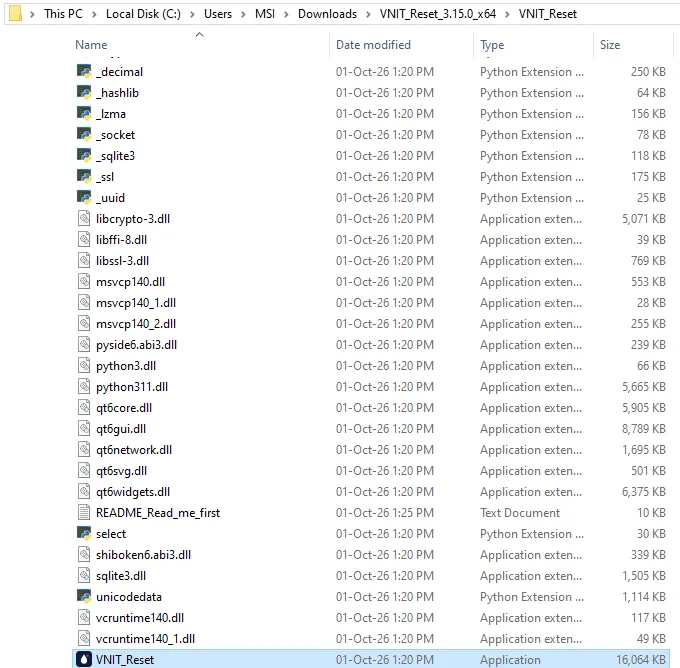
Keep all the files together. Do not copy VNIT_Reset.exe on its own to the desktop: it needs the files next to it. For a desktop icon, right-click VNIT_Reset → Send to → Desktop (create shortcut).
Do not run the app from inside the zip. Windows opens it in a temporary folder, and the tool cannot save your key there.
There is no installer and it does not need administrator rights. To remove it later, delete the folder.
Chrome may also say the file “may be dangerous” when a version is new. It is not a virus detection. What to do about that warning.
Step 3: “Windows protected your PC”
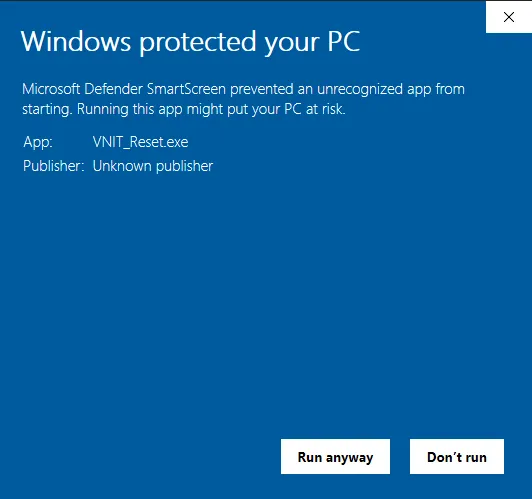
Double-click VNIT_Reset. Windows may show a blue box:
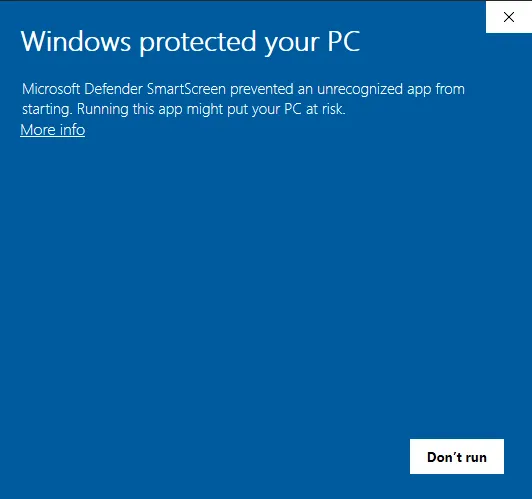
This is Microsoft Defender SmartScreen. It warns about any downloaded program it has not seen many times yet, and about programs that are not signed with a paid code-signing certificate. VNIT Reset Tool is not signed yet. Microsoft says that files with an established reputation show no warning, so some PCs show this box and others do not.
- Click More info.
- The box now shows App: VNIT_Reset.exe and Publisher: Unknown publisher. Click Run anyway.
You only do this once for each version. Want to check the file first? Compare its SHA-256 checksum with the one on the download page (the steps are on Is it safe?).
If your antivirus deletes the file or blocks it, restore it from quarantine and allow it. See Is it safe? for why tools like this get flagged.
Blocked by Smart App Control (no Run anyway button)
Some Windows 11 PCs have Smart App Control turned on. It is stricter than SmartScreen. Microsoft’s cloud service checks the app first. If it cannot say the app is safe, Smart App Control checks for a valid signature. VNIT Reset Tool is not signed yet, so it can be blocked, and there is no Run anyway button. Microsoft says there is currently no way to allow a single app.
To run the tool on that PC, turn Smart App Control off:
- Open Windows Security (Start, then type Windows Security).
- Go to App & browser control, then Smart App Control settings.
- Choose Off, then open VNIT_Reset again.
Before you switch it off: Microsoft says recent Windows updates let you turn Smart App Control back on without reinstalling Windows. On a PC that is not up to date, turning it back on may need a reset of Windows. Do not use registry tweaks to hide it. If you would rather keep it on, use another PC (Windows 10, or Windows 11 with Smart App Control off) or a Mac. The counter is stored in the printer, so it does not matter which computer does the reset.
Step 4: connect and read the counter (free)
- Connect the printer with the USB cable and switch it on. Wait until it is quiet.
- Press Check Printer (or Connect at the top right). The tool finds the printer over USB by itself and reads the counters. It takes about 10 to 20 seconds.
- You see the model, the serial number, the port and each waste ink counter.
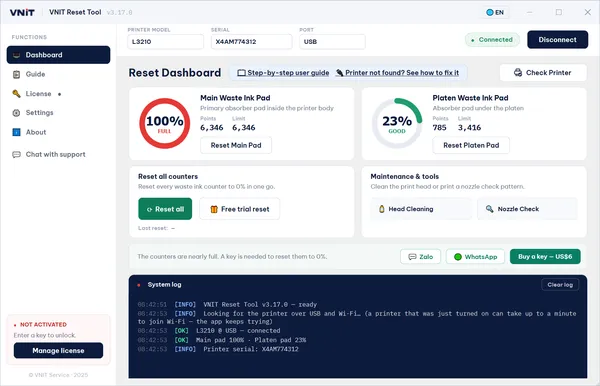
Under each gauge, Points is the current count and Limit is where the printer stops. At 90% or more the gauge says Full, from 70% Near full, below that Good. On the real L805 in our step 1, the Main pad read 17,600 points against a limit of 17,572, so it showed 100%.
Reading the counter is free and never uses a key or the trial. What the numbers mean.
Step 5: reset
Free trial (to 80%)
If a counter is at 90% or more, press Free trial reset (gift icon, next to Reset all). A box explains the trial. Press Use trial now, then Confirm reset. The counter goes to 80%, which is usually enough to print again while you sort out the pads. It works once per printer.
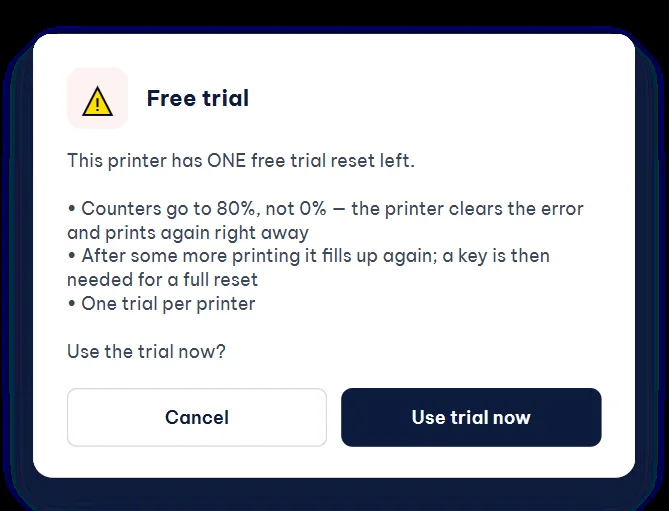
If the printer has already used its trial, the log says This printer has already used its free trial — a key is required.
Full reset to 0% (with a key)
- Buy a key on the pricing page (US$6 for one printer). It arrives by email in about a minute.
- In the tool, press Reset all. Without a key, the tool opens the License screen.
- Paste the key (it looks like
VNIT-XXXX-XXXX) into RESET / LICENSE KEY and press Activate.
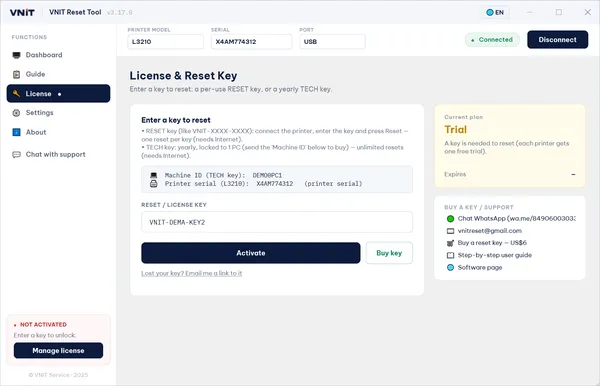
- The tool goes back to the reset by itself. Check that the model and serial in the Confirm reset box are your printer, then press Confirm reset.
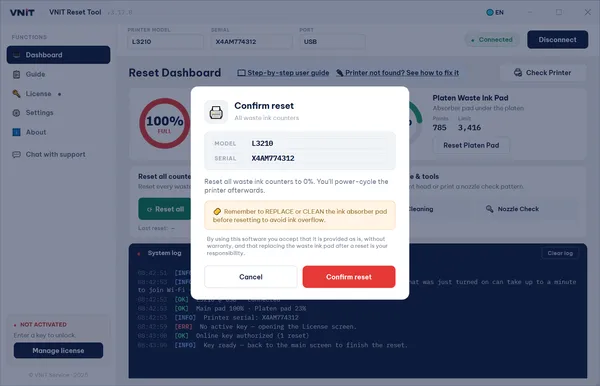
The key is used only when the reset has been written to the printer.
After the reset
The tool shows Written — now turn the printer off and on:
- Switch the printer off with its power button and wait until all lights are off (some models take 20 to 30 seconds).
- Switch it on and wait until it is quiet (usually 1 to 2 minutes). The printer only reads the new counter when it starts.
- Over USB, the tool notices the printer going off and on and reads the counters again by itself. If it has not, press The printer is back on – read the counters.
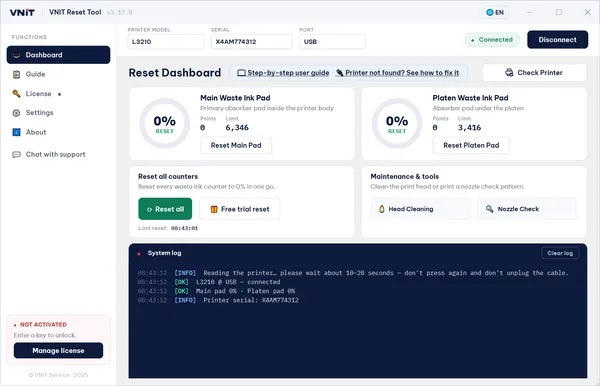
The error still there? Error still shows after the reset.
If the printer is not found
These are the messages we see most often, and what to do. Every message the tool can show is explained in VNIT Reset Tool cannot find, read or reset the printer.
| The tool says | What to do |
|---|---|
| Printer not found over USB or Wi-Fi | Check that the printer is on and the cable is in. Try another USB port on the PC, directly (no hub). |
| The printer has not answered after several tries | The printer is busy (cleaning, printing, or another program has it). Wait until it is quiet. Or switch it off, wait 10 seconds, switch it on and read again. Then try a short, good USB cable. |
| The printer is reporting a full waste ink pad and does not accept commands yet | Cancel all waiting print jobs, switch the printer off for 10 seconds, switch it on, wait until it is quiet and read again. |
| The printer answers over Wi-Fi but will not share its counter | This model needs a USB cable. Plug it in and read again. |
| Windows 11: the printer prints, but the tool cannot find it over USB (or says Windows is using a different driver) | Windows protected print mode or Windows Ready Print has swapped the Epson driver for Microsoft’s. Turn both off and reinstall the printer: step by step. |
Since version 3.12.7 the tool also cancels a stuck Windows print job for that printer by itself before it reads.
Resetting does not empty the pads
The reset only clears the counter. The pads inside the printer still hold the ink they have soaked up. Check them, and wash or replace them, or fit an external waste ink tank. Otherwise ink can leak out of the printer. How to handle the pads after a reset.
Still stuck?
Press Chat with support in the tool (from version 3.15), or send a screenshot of the tool on WhatsApp or email. Turning on Verbose logging in Settings first helps us see what happened.
Sources
- Microsoft Learn: Microsoft Defender SmartScreen overview
- Microsoft Support: Smart App Control frequently asked questions
- Microsoft Support: Zip and unzip files
- VNIT Reset Tool, README (included in the Windows download)