
You do not need Windows
Many Epson waste ink reset programs are Windows programs. Mac owners often end up borrowing a Windows PC, or trying to run Windows on the Mac.
VNIT Reset Tool has a Mac app of its own. It is one download for every Mac from macOS 11 onwards, with an Intel chip or an Apple chip (M1 and newer). You do not need Boot Camp or a virtual machine. Boot Camp only works on Intel Macs anyway.
What you need
- A Mac with macOS 11 or newer and an internet connection. The tool downloads the settings for your exact printer model.
- A USB cable to the printer (many Macs need a USB-C adapter). Some older models can also be reset over Wi-Fi; newer ones, including the L3250, L5290 and ET-2800, only over USB. See Wi-Fi or USB.
- VNIT Reset Tool for Mac (free download).
Is there an Epson Adjustment Program for Mac?
No. The Epson Adjustment Program that circulates online is Windows service software, and there is no Mac version of it (which Epson reset tools run on a Mac). On a Mac you need a tool built for macOS, like the one in this guide.
Install it
The screenshots on this page come from a real run on an Intel Mac with VNIT Reset Tool 3.12.8 and an Epson L805. The same steps are in the video at the top of the page.
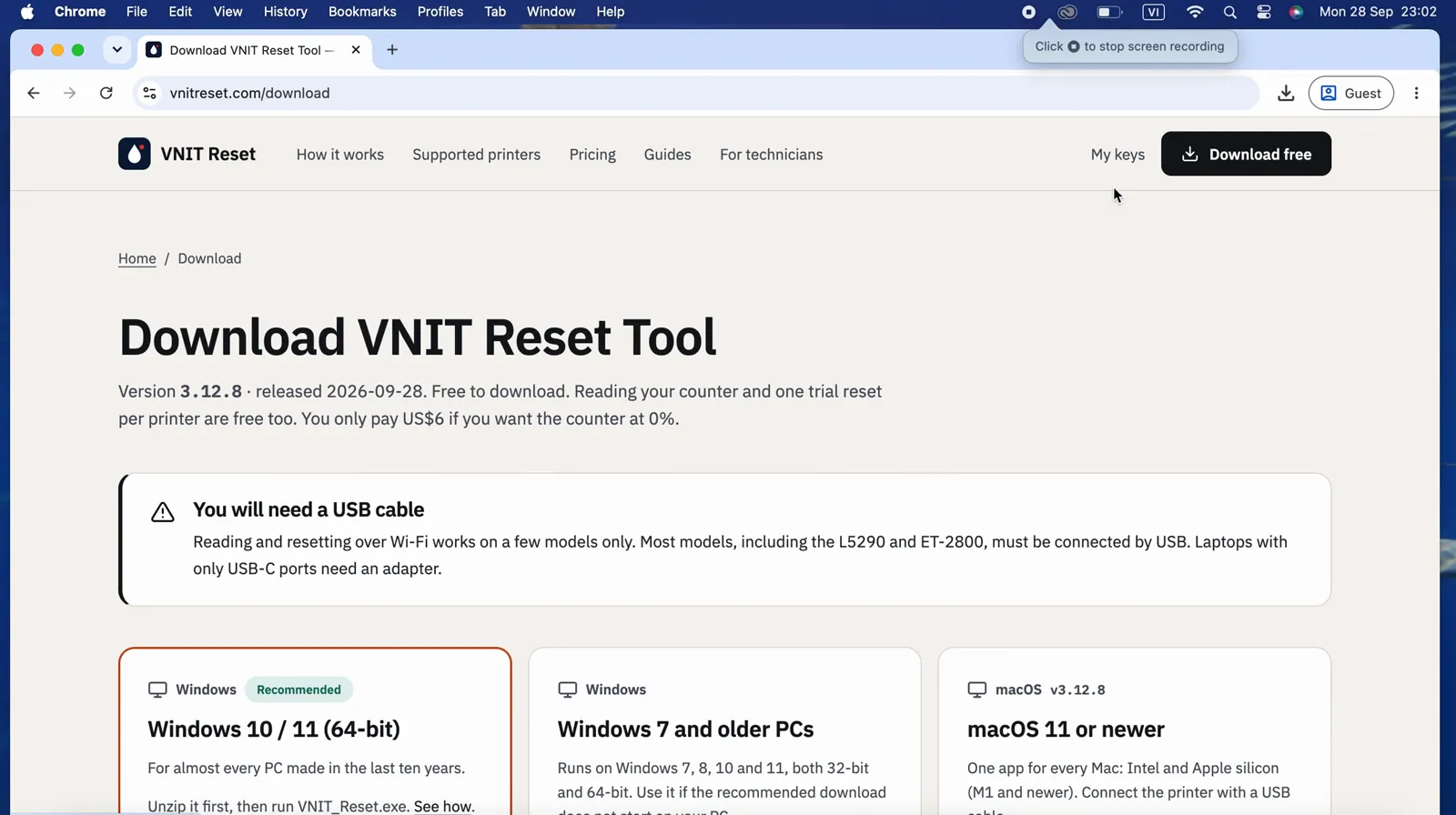
- Download the Mac zip. The Mac card is the third one on the download page.
- Double-click the zip in Downloads. Safari may already have unzipped it. You get a folder with VNIT Reset and a “READ ME FIRST” file with the same steps in English and Vietnamese.
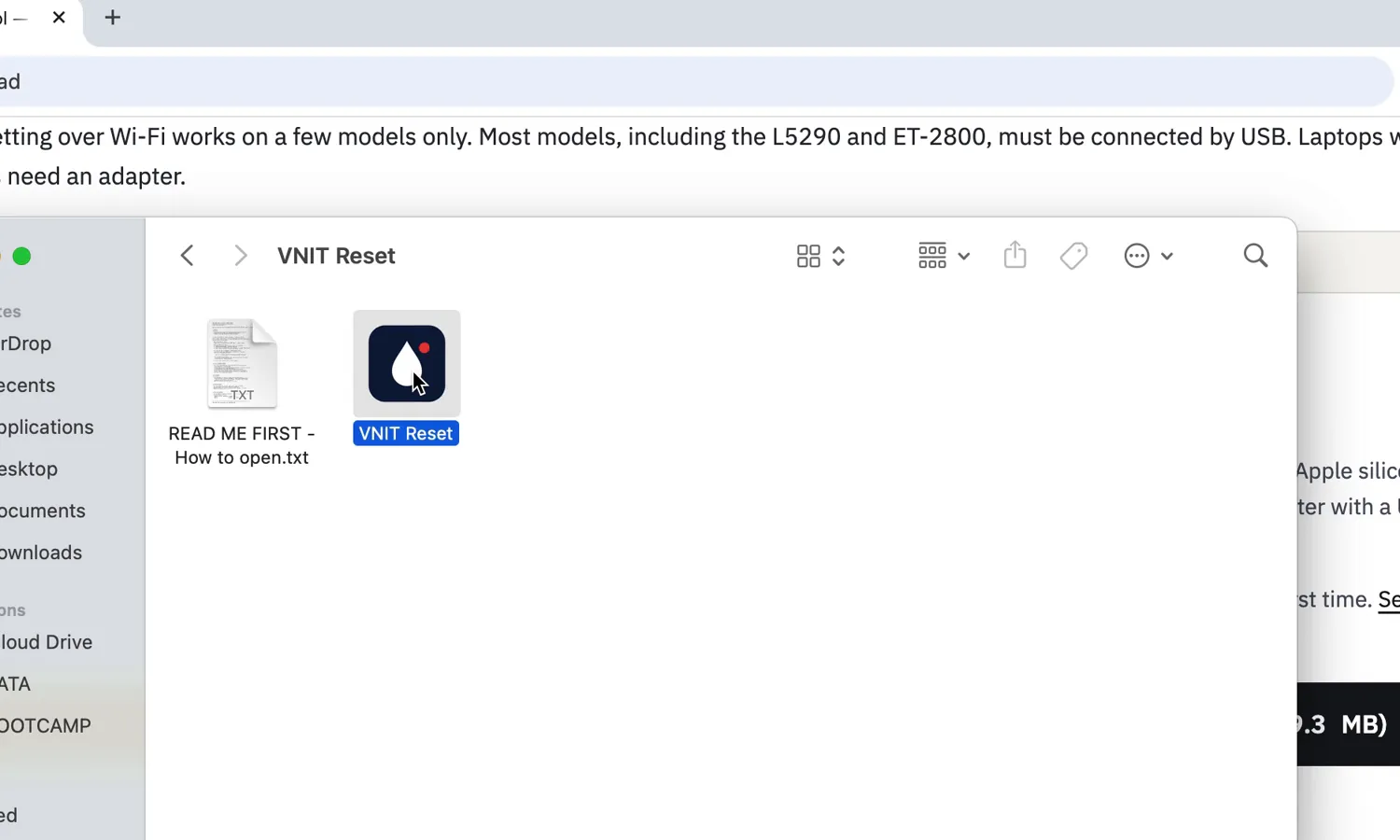
- Double-click VNIT Reset to open it, right there in the folder. You do not need to move it to Applications (you can if you like). The first time, macOS asks you to confirm (see the next section).
Opening it the first time
macOS shows a warning for apps that are downloaded outside the App Store and are not notarized by Apple. You only confirm once.
macOS 14 (Sonoma) or older: right-click (or Control-click) VNIT Reset, choose Open, then Open again.
macOS 15 (Sequoia) or newer, and any version where right-click → Open does not work:
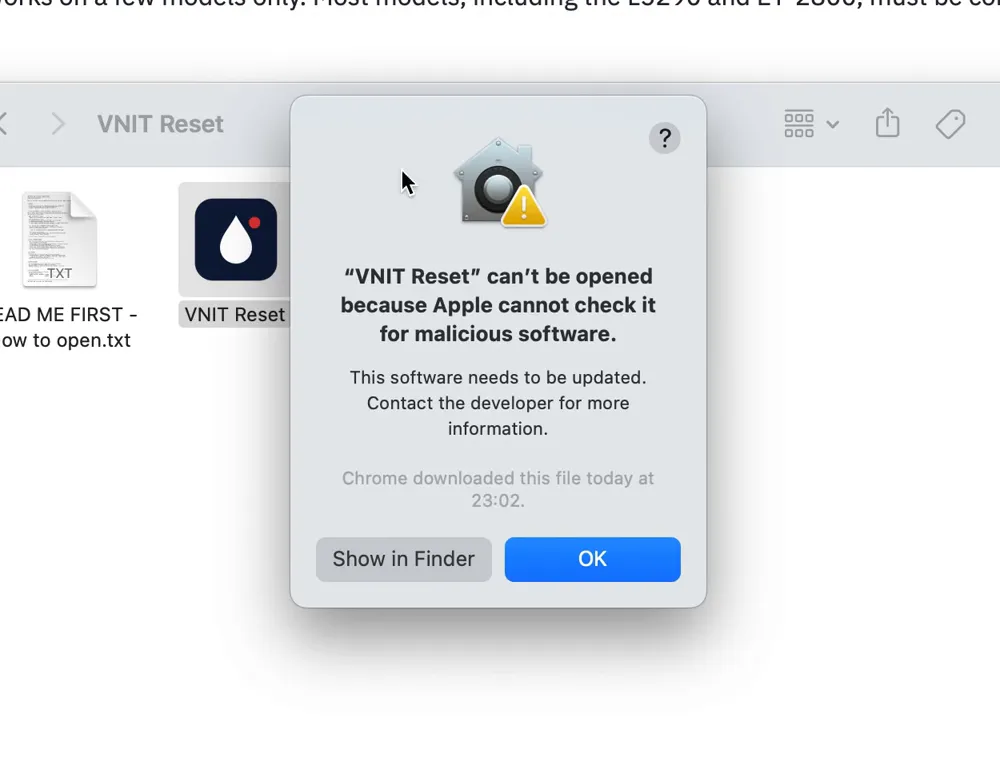
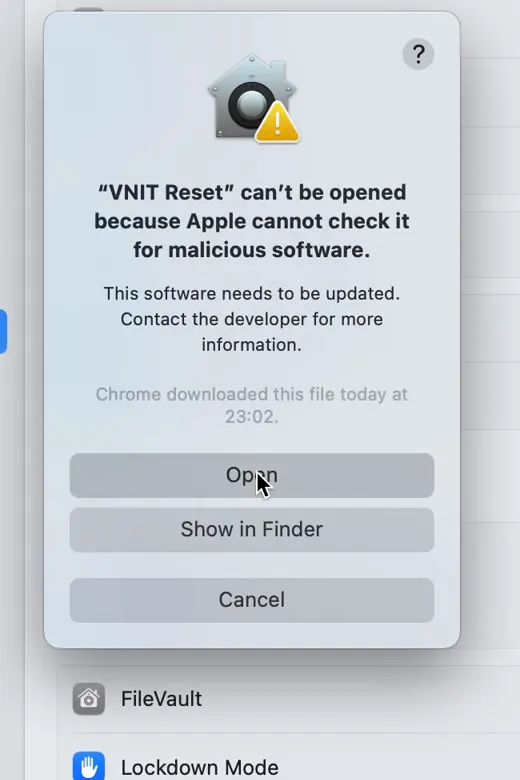
- Double-click the app. macOS says it cannot check the app for malicious software. Press OK (on some versions Done).
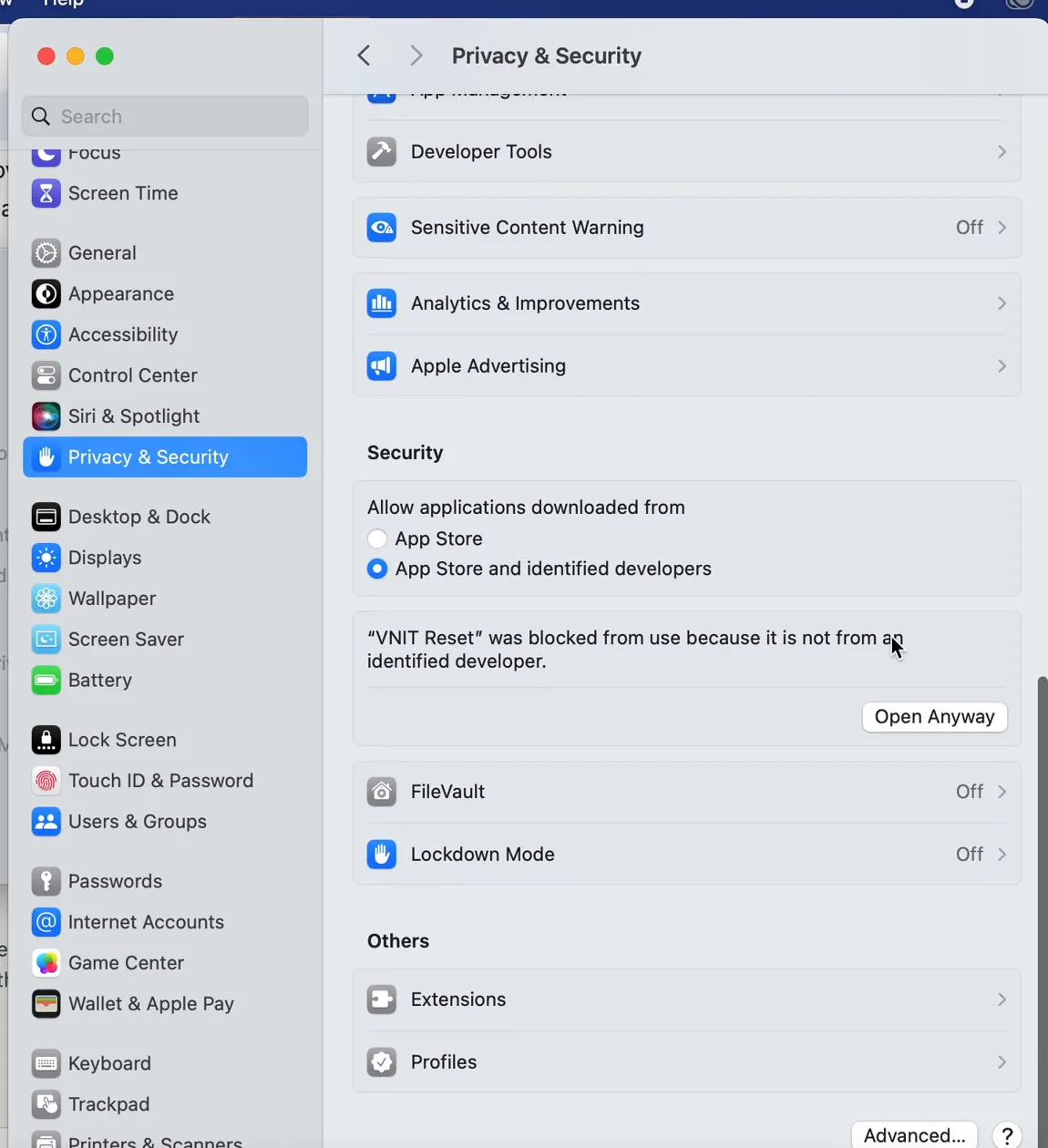
- Open System Settings → Privacy & Security and scroll down to Security. You will see “VNIT Reset was blocked from use because it is not from an identified developer”. Press Open Anyway.
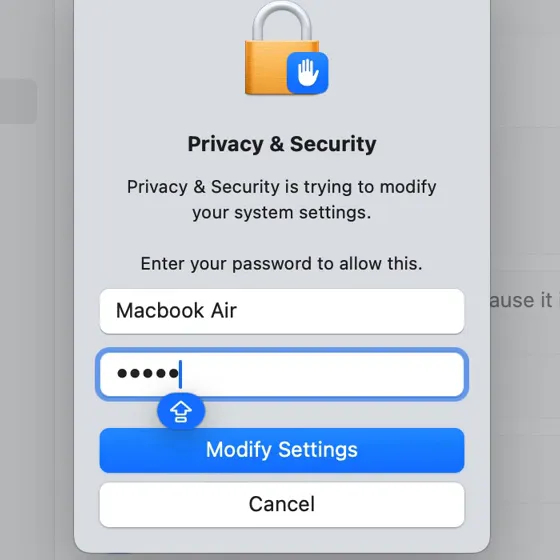
- Enter your Mac password and press Modify Settings (on some versions Open Anyway).
- The warning appears one last time, now with an Open button. Press Open.
After that it opens normally, like any other app. You do not need to turn off System Integrity Protection or allow apps from “Anywhere”.
If macOS says the app is damaged, open Terminal (Applications → Utilities) and type this line, with a space at the end. Do not press Return yet:
xattr -dr com.apple.quarantine Then drag the VNIT Reset app from its folder into the Terminal window. Its location is added to the line. Press Return, then open the app again.
Want to check the download first? The SHA-256 checksums are on the download page and on Is it safe?.
Read the counter
- Switch the printer on and wait until it is quiet.
- Press Connect, or Read counter. The tool looks for the printer on USB and on your network.
- The model, serial number and each waste ink counter appear as percentages. Here the Main pad is at 100%, which is why the printer stopped with a “Service required” error.
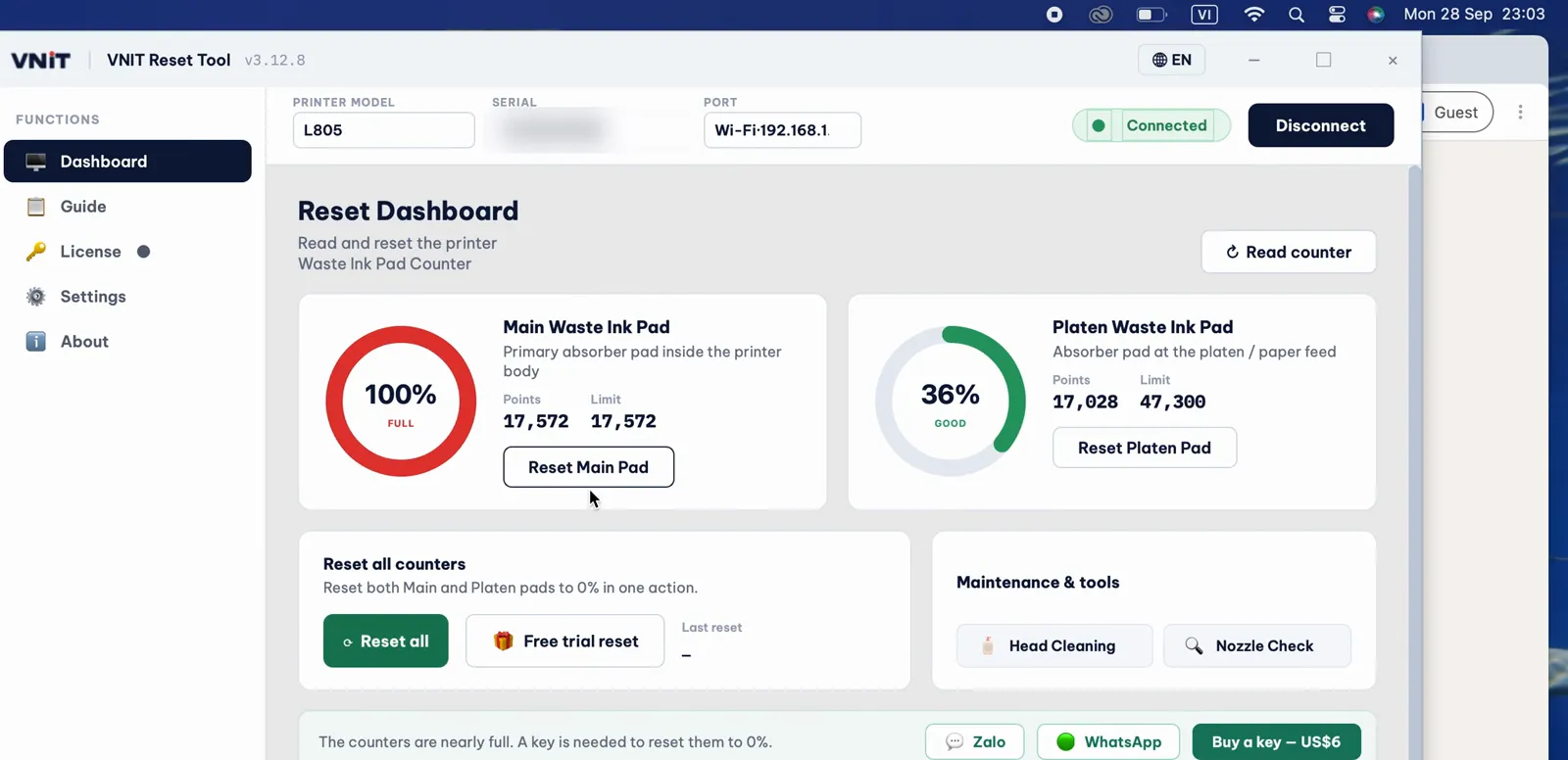
Reading the counter is free and never uses a key. What the numbers mean.
Reset it
Free trial (to 80%)
If a counter is at 90% or more, you can bring it down to 80% once per printer, free. That is often enough to start printing again while you sort out the pads. Press Free trial reset, read the box and press Use trial now.
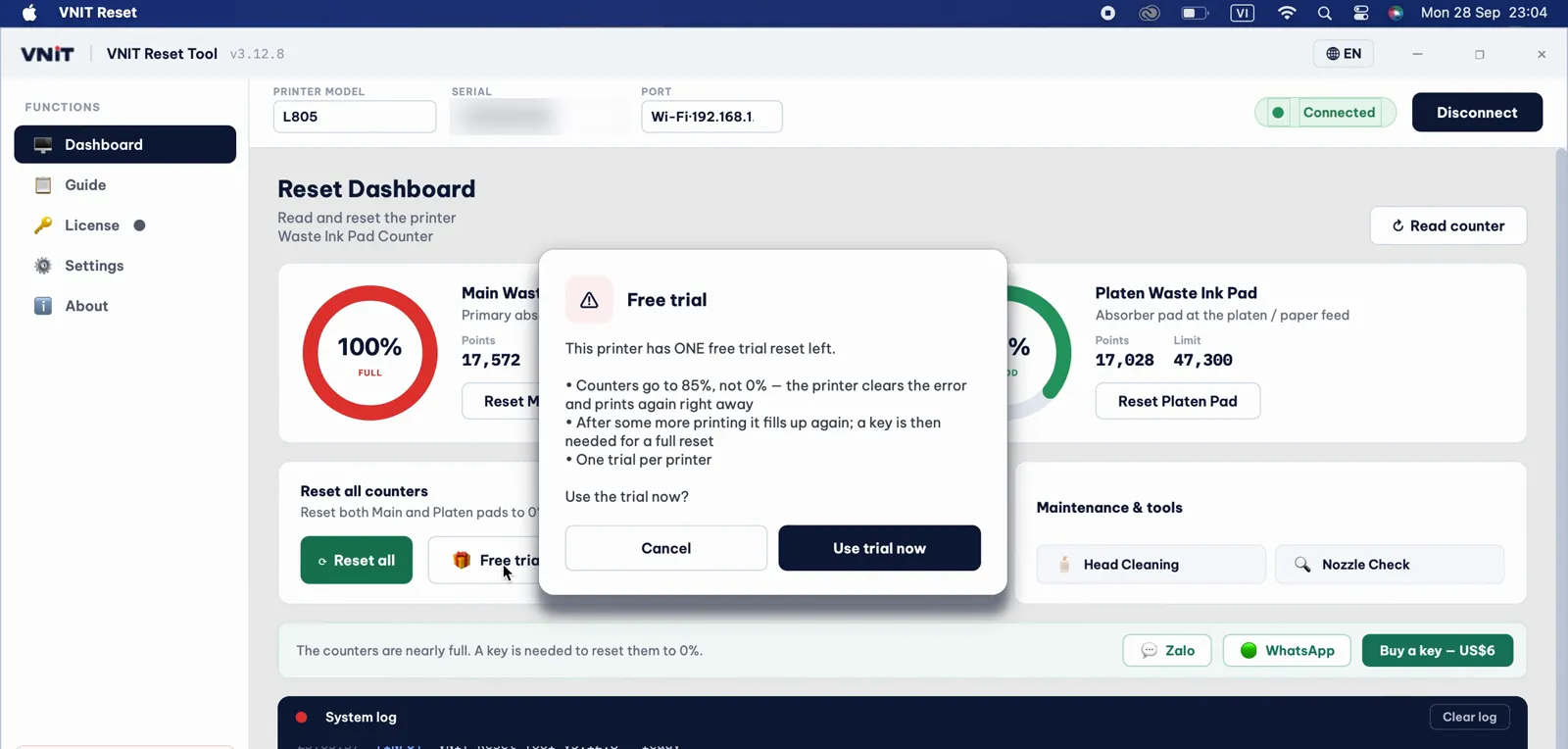
After the reset, switch the printer off with its power button, wait about 10 seconds, switch it on and read the counter again. The Main pad now shows 80%.
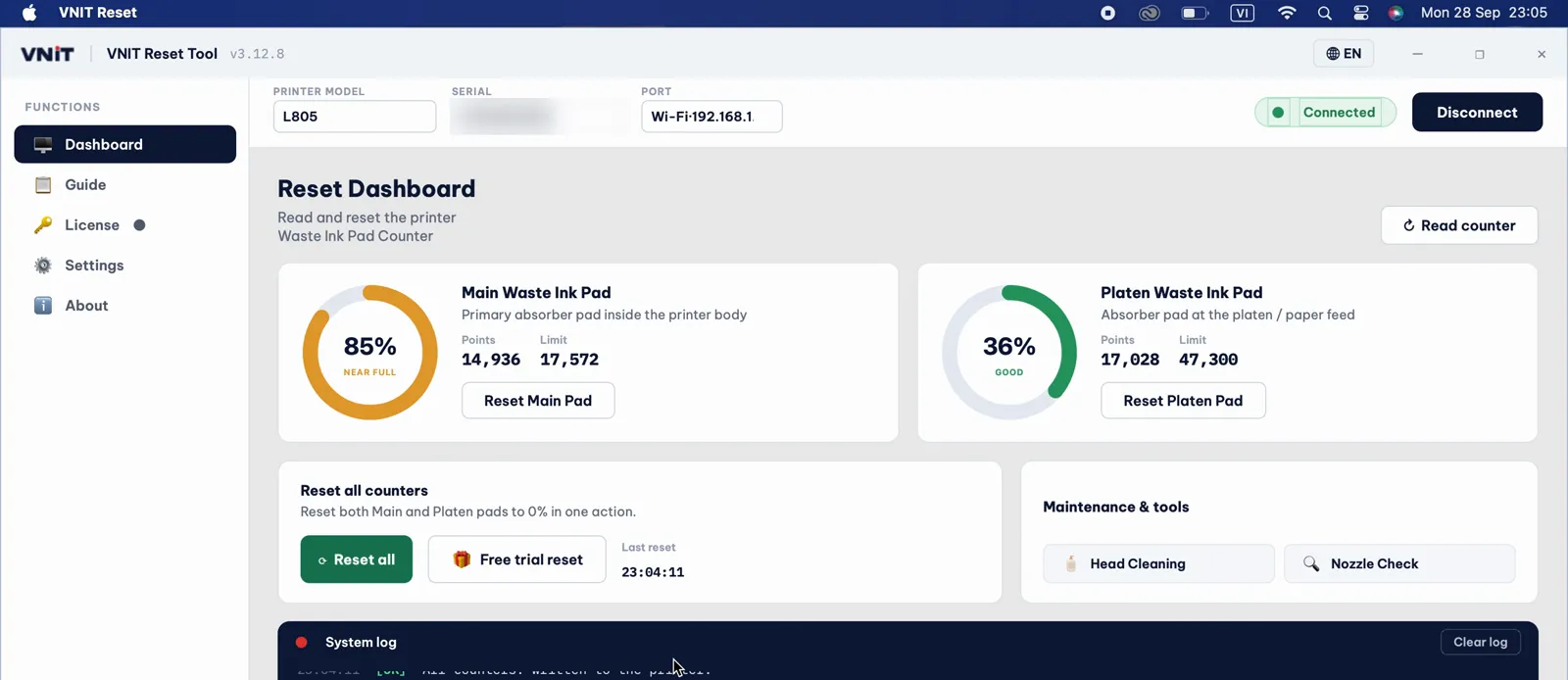
These two screenshots are from app 3.12, when the trial went to 85%. The trial now goes to 80%.
Full reset to 0% (with a key)
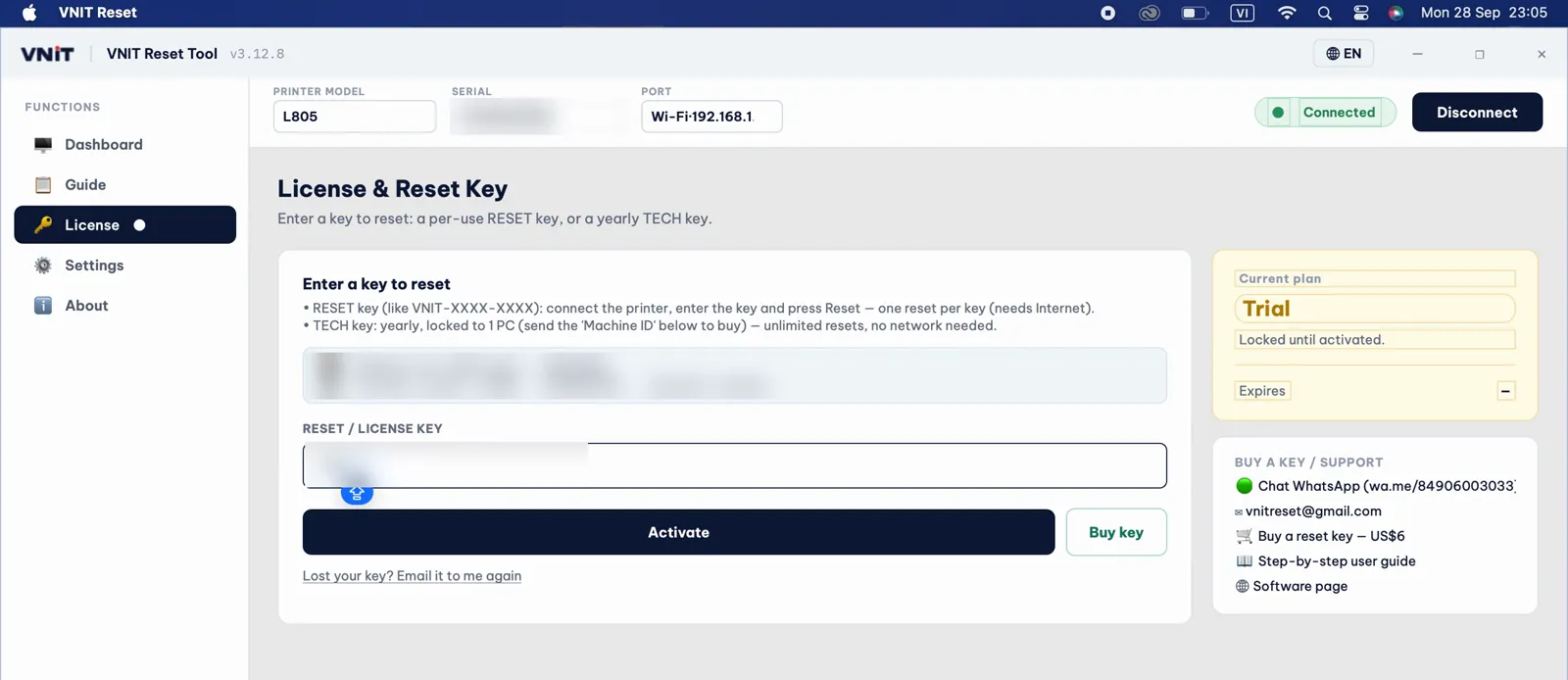
Buy a key on the pricing page (US$6 for one printer). The key arrives by email. In the tool, open License, paste the key, press Activate, then Confirm reset.
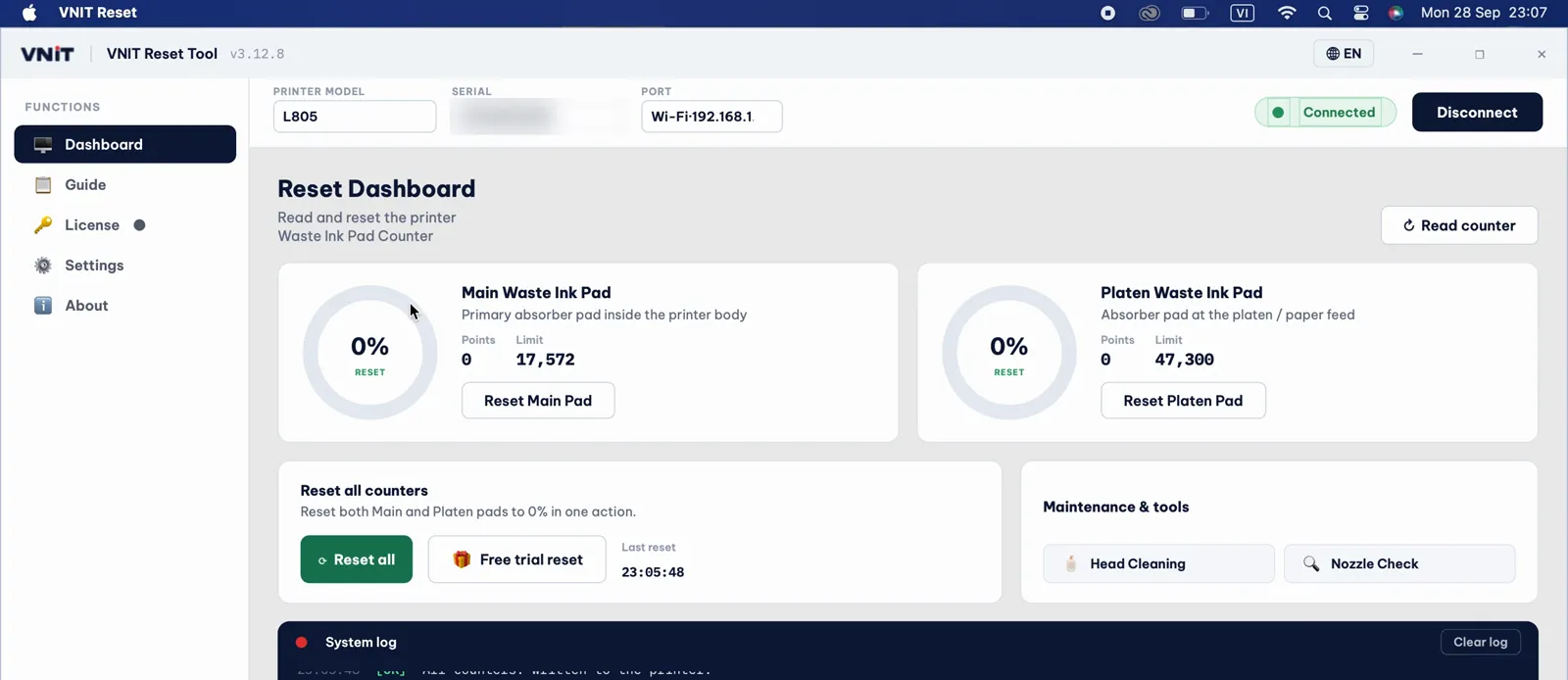
Switch the printer off and on again and read the counter. Both counters are back at 0%.
Wi-Fi or USB: it depends on the printer
Older Epson models still let the counter be read and reset over Wi-Fi. Newer models answer on Wi-Fi, but refuse the counter commands there, so only a USB cable works. It is the printer that decides, not the Mac: the same models behave the same way on Windows.
From the tool’s own reset logs, up to October 2026:
| Models | |
|---|---|
| Reset over Wi-Fi worked | L805, L3150, L5190, L4160, L365 |
| Wi-Fi refused, USB only | L3250, L4260, L5290, ET-2800, ET-2810, ET-2860 |
| Reset on a Mac over USB | ET-2800, ET-2820, ET-2850, ET-4800, L1800, L3100, L3110, L3150, L3210, L3250, L396, L4260, L5290, L805, XP-640 |
Look at the pairs: the L3150 works over Wi-Fi and the newer L3250 does not; the same goes for the L5190 and the L5290. If your model is in neither of the first two rows, start with USB. A USB cable works on every supported printer, Wi-Fi or not.
When the tool reaches one of the newer models over Wi-Fi, it says the model does not allow reading or resetting over Wi-Fi and asks you to plug in a cable. Your key is not used. Pressing Read counter again over Wi-Fi will not help: plug in the cable, and the tool switches to it by itself.
On a model that works over Wi-Fi:
- The first time, macOS asks whether VNIT Reset may find devices on local networks. Press Allow. Without it the Mac cannot see the printer on Wi-Fi.
- Pressed “Don’t Allow” by mistake? Go to System Settings → Privacy & Security → Local Network and switch on VNIT Reset.
- The Mac and the printer must be on the same network. A guest network will not work.
- A printer that has just been switched on can take about a minute to join Wi-Fi.
- Some office and mesh Wi-Fi systems block printer discovery. If the printer is not found, use a USB cable.
- The connection can drop out in the middle. If a reset over Wi-Fi fails, use the cable rather than trying again over Wi-Fi.
Printer on USB says “busy”
macOS keeps the USB printer for its own print queue. If the tool says the printer is busy or in use by the system:
- Cancel any print jobs that are waiting.
- Open System Settings → Printers & Scanners, select the Epson and open its print queue.
- Press Pause, then press Read counter in the tool again.
- After the reset, press Resume so the printer can print again.
Resetting does not empty the pads
The reset only clears the counter. The pads inside the printer still hold the ink they have soaked up. Check them, and wash or replace them, or fit an external waste ink tank. Otherwise ink can leak out of the printer. How to handle the pads after a reset.
Still stuck?
Every message the tool can show, with its fix: VNIT Reset Tool cannot find, read or reset the printer.
Turn on Verbose logging in the tool’s settings, try again, take a screenshot of the app and send it to us on WhatsApp or email.
Sources
- VNIT Reset Tool for macOS, READ ME FIRST (included in the download)
- Apple Support: Safely open apps on your Mac
- Apple Support: Install Windows 10 on your Mac with Boot Camp Assistant