
Screens below are from version 3.17.0 (October 2026), taken on Windows.
Before you start
| Question | Short answer |
|---|---|
| What does it do? | Reads and resets the waste ink pad counter on supported Epson inkjet printers, so a printer that stopped with an ink pad error prints again. |
| Do I install anything? | No. Unzip the download and open the app. |
| Does it need internet? | Yes. It downloads the settings for your exact printer model each time, even just to read the counter. |
| Can I use it without buying? | Yes. Reading the counter is free, and each printer gets one free trial reset (to 80%). |
| How many resets per key? | One key = one reset, on one printer. Keys do not expire. |
| Which printers can it not reset? | Models with a replaceable maintenance box (for example L6550, L8050, L18050). Replace the box, or reset its chip with a chip resetter. Check your model. |
1. Download and open it
Windows 10 or 11 (64-bit): download the recommended zip from the download page. Windows 7 or 32-bit Windows: download the second zip.
- Right-click the zip and choose Extract All. Open the new folder, then the VNIT_Reset folder inside it.
- Double-click VNIT_Reset.exe (the file with the VNIT icon). The folder also holds many library files the app needs, so keep them together; for a desktop icon, right-click VNIT_Reset.exe → Send to → Desktop (create shortcut). There is no installer and it needs no admin rights. Windows steps with screenshots.
- If Windows shows “Windows protected your PC”, click More info, then Run anyway. Why this appears.
Do not run the app from inside the zip without extracting it. Windows only shows the files in a zip. The app cannot save your key from there.
Mac (macOS 11 or newer, Intel or Apple silicon): download the Mac zip, unzip it and open VNIT Reset from the folder. macOS asks you to confirm the first time. Step-by-step for Mac.
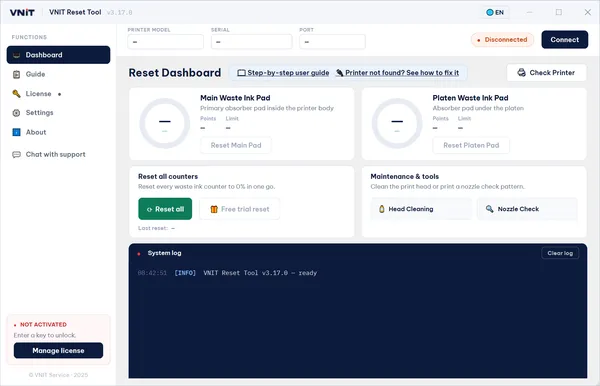
When the app opens it shows the Dashboard, still empty because no printer is connected yet.
2. Connect the printer
Use a USB cable. It works on every supported printer. Reading and resetting over Wi-Fi works on a few models only (for example the L805). Most models, including the L5290 and ET-2800, must be connected by USB.
- Connect the USB cable from the printer to the computer.
- Switch the printer on and wait until it is quiet.
- Press Connect (top right) or Check Printer. The app looks for the printer over USB and Wi-Fi by itself.
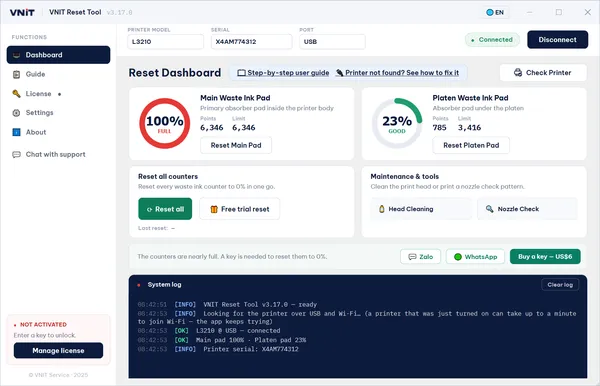
- The bar at the top shows PRINTER MODEL, SERIAL and PORT, and the status changes to Connected.
Wi-Fi (a few models only): on a model that supports it, the printer and the computer must be on the same network, and a printer that has just been switched on can take up to a minute to join Wi-Fi. If the app finds the printer on Wi-Fi but the printer does not allow its counters to be read that way, the reset buttons stay locked and the log says so. Plug in the USB cable and press Check Printer again; the buttons unlock once the counters are read.
If more than one Epson is connected, the app asks you to choose one.
3. The screens
The menu on the left has five screens and a chat button:
| Screen | What it is for |
|---|---|
| Dashboard | Read the counters, reset, head cleaning and nozzle check |
| Guide | The reset steps inside the app, with links to this guide and to printer not found |
| License | Enter a key, see your current plan, get a lost key back |
| Settings | Language, auto-connect, Verbose logging, error report to support |
| About | Version number and licences |
| Chat with support | Write to us from inside the app. The app attaches the printer model and the last error, so you do not have to type them. |
The System log at the bottom of the Dashboard records every action, and the reason when something fails. If you press a button and nothing seems to happen, read the log first.
4. Read the counter (free)
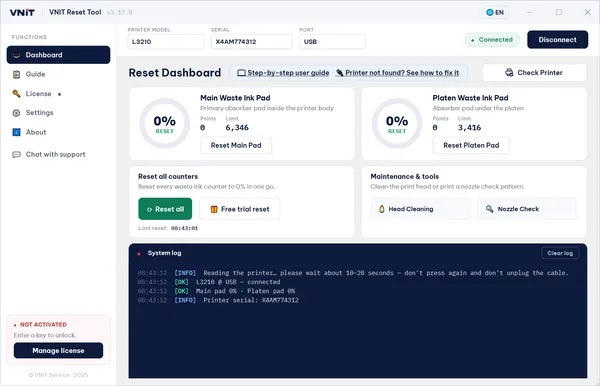
With the printer connected, press Check Printer. Reading takes about 10 to 20 seconds; do not press again or unplug the cable meanwhile. Most printers show two gauges:
| Gauge | What it measures |
|---|---|
| Main Waste Ink Pad | The main absorber pad inside the body of the printer |
| Platen Waste Ink Pad | The pad under the platen, used by borderless printing |
| Level | Label under the gauge | What it means |
|---|---|---|
| Under 70% | Good | Normal. No reset needed. |
| 70 to 89% | Near full | Plan ahead: have pads or a reset ready. |
| 90% or more | Full | The printer has stopped, or will soon. It needs a reset. |
| 0% | Reset | The counter has just been reset. |
Under each gauge, Points is the current count and Limit is where the printer stops. Some models are not calibrated as a percentage yet; they show the points only and reset the same way. More about the numbers.
5. Free trial reset
The Free trial reset button (gift icon) sits next to Reset all while no key is entered.
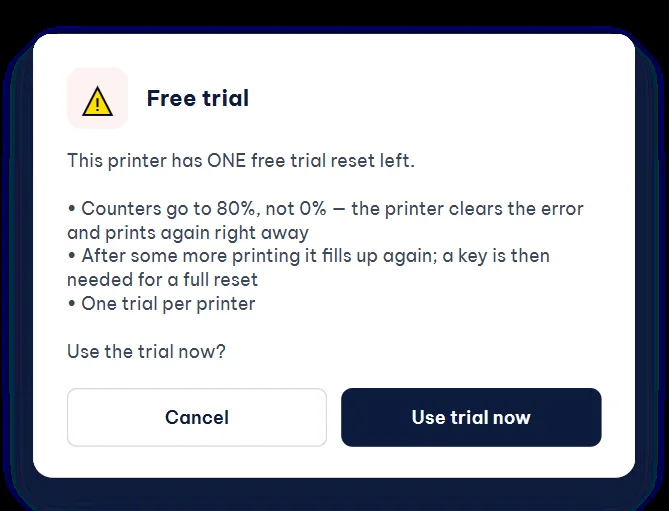
- Once per printer. Trials are counted on our server, so reinstalling the app does not give another one.
- The counter must be at 90% or more. Below that the trial would not lower anything, so the app keeps it for later.
- It brings the counter down to 80%, not to 0%. The error stops and the printer prints again.
- If a trial fails part-way, it is not counted.
Press it, read the box, and press Use trial now. Then confirm the reset and switch the printer off and on, as in steps 6 and 7.
6. Reset to 0% with a key
Keys look like VNIT-XXXX-XXXX. Buy a key (US$6 for one printer). It arrives by email straight after payment.
- Connect the printer and press Check Printer.
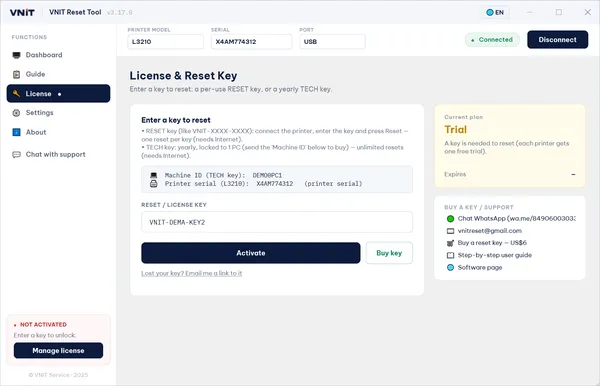
- Press Reset all (or Reset Main Pad / Reset Platen Pad for one pad only). Without a key, the app opens the License screen.
- Paste the key into RESET / LICENSE KEY and press Activate.
- The app goes back to the reset by itself and shows Confirm reset with the printer model and serial. Check that they are your printer, then press Confirm reset.
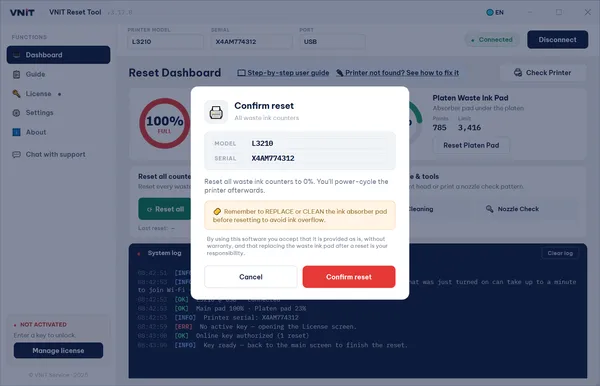
Lost the email with your key? Press Lost your key? Email me a link to it on the License screen, or go to My keys.
7. After the reset: turn the printer off and on
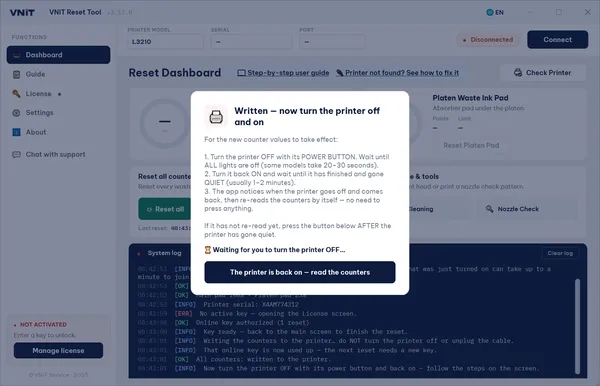
This is required. The printer only reads the new value after a restart. Skip this and it keeps showing the old error. The app shows what to do:
- Turn the printer off with its power button. Wait until all lights are off (some models take 20 to 30 seconds).
- Turn it back on and wait until it has finished and gone quiet (usually 1 to 2 minutes).
- Over USB, the app notices the printer going off and coming back, and reads the counters again by itself. If it has not re-read yet, press The printer is back on – read the counters after the printer has gone quiet.
The gauges should now show 0% (or 80% after a trial).
Then check the pads. The reset clears the counter, not the ink. Pads that are soaked need washing, replacing, or an external waste ink tank. Otherwise ink can leak out of the printer. How to handle the pads.
8. Head cleaning and nozzle check
Under Maintenance & tools on the Dashboard:
| Button | Use it when |
|---|---|
| Head Cleaning | Prints have streaks, faded lines or missing colours |
| Nozzle Check | You want a test page that shows blocked nozzles |
Every cleaning sends ink to the waste pads, so do not run it again and again without a reason.
9. Settings
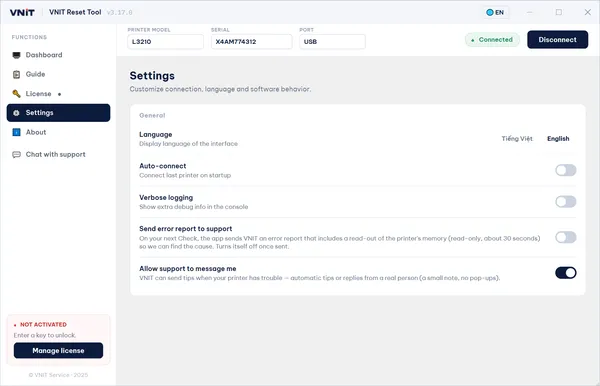
| Setting | What it does |
|---|---|
| Language | Switch the interface language |
| Auto-connect | Connect the last printer when the app starts |
| Verbose logging | Show extra technical lines in the System log. Turn it on before you send us a screenshot of a problem. |
| Send error report to support | On your next Check, the app sends us a report with a read-only copy of the printer’s memory (about 30 seconds), so we can find the cause. It turns itself off once sent. |
| Allow support to message me | Lets us send a short tip or reply in the app when your printer has trouble. No pop-ups. |
10. Troubleshooting
Every message the app can show, with step-by-step fixes (including Windows 11 driver problems): the tool cannot find, read or reset the printer. Errors in the app have a “How to fix” link to the right part of that page. The short version:
| Message or problem | What to do |
|---|---|
| Could not read the printer | Make sure it is on and connected (USB cable, or the same Wi-Fi network), then press Check Printer. |
| Printer not found over USB or Wi-Fi | Check that the printer is on and the USB cable is firmly plugged in, then press Check Printer again. Most models cannot be read over Wi-Fi, so use the cable. |
| Your computer is holding the printer’s USB port | Common right after the printer is turned back on. Wait about a minute and press Check Printer again. Still busy: cancel any waiting jobs in the Epson print queue, then unplug and replug the cable. |
| Print jobs still waiting for this printer | Open the printer’s queue in Windows, choose Cancel All Documents, then try again. |
| Reset is locked: the printer does not allow reading its counters over Wi-Fi | Connect a USB cable and press Check Printer. The button unlocks once the counters are read. |
| Model not in the database | Send us the model name in Chat with support or on WhatsApp or email so we can add it. |
| Written, but the read-back does not match yet | Do not press Reset again right away. Turn the printer off with its power button, wait until all lights are off, turn it on, wait 1 to 2 minutes, then press Check Printer. Still high? Use Chat with support. |
| Still shows the error after the reset | Switch the printer off and on (step 7). More causes. |
| Trial says the counter is not full enough | The counter is under 90%. No reset is needed yet. Keep the trial for later. |
| Trial already used | This printer has had its free trial. A key resets it to 0%. |
| Nothing happens when you press a button | Read the System log at the bottom of the Dashboard. |
| The app closes by itself | Windows: send us the file loi.txt next to VNIT_Reset.exe. |
For anything else, turn on Verbose logging in Settings, try again, and send us a screenshot of the app in Chat with support or on WhatsApp or email.
11. What the app sends to our server
The printer model, its serial number, a computer ID, the key used and the result of each reset. If you turn on Send error report to support, also a read-only copy of the printer’s memory, once. We use this to check keys, count free trials and help when something goes wrong. It does not read or send your documents or anything you print. Privacy policy.
Sources
- VNIT Reset Tool 3.17.0, English interface text and screenshots (demo mode, simulated printer)
- VNIT Reset Tool user manual (internal, 2026)