
Reset the Epson L5290 waste ink pad counter
The L5290 can be reset in software. VNIT Reset Tool reads its counters for free over a USB cable, runs one free trial reset, and resets to 0% with a US$6 key.
Windows or Mac · reading the counter is free · one free trial per printer
We'll email you the download link, so you can open it on your Windows PC or Mac later. Reading the counter is free.
Sent. Open the email on your computer.
Too many requests. Please try again in a few minutes.
That does not look like an email address.
We could not send the email just now. Please try again later.
On Windows, install the L5290 with Epson's driver, not Microsoft's. Download it from Epson's website for this model. If Windows set the printer up by itself with a Microsoft driver (Windows Ready Print or Microsoft IPP Class Driver), it may still print, but the tool often can't read or reset it over USB. How to get the Epson driver back.
Where the L5290 has been reset
62 L5290 printers have been reset with VNIT Reset Tool between 22 August 2026 and 30 October 2026, in 12 countries. Counted by printer serial from the reports the app sends after a reset; we publish no serial numbers or personal data.
Countries, most first: the Philippines, Indonesia, India, Australia, Brazil, Colombia, Algeria, Kenya, Morocco, Peru, Romania, Yemen.
Connection used: USB cable · computers: Windows and Mac.
Waste ink counters on the L5290
VNIT Reset Tool reads and resets these counters on the L5290. The printer stops when a counter reaches its limit.
| Counter | What it is | Limit |
|---|---|---|
| Main pad | The main absorber pad inside the printer body | 6,346 points |
| Platen pad | The pad near the paper path, used by borderless printing | 3,416 points |
| Ink system pad | A further pad counter found on newer ink tank models | 1,300 points |
The tool shows each counter as a percentage of its limit. 100% means full.
How the L5290 tells you
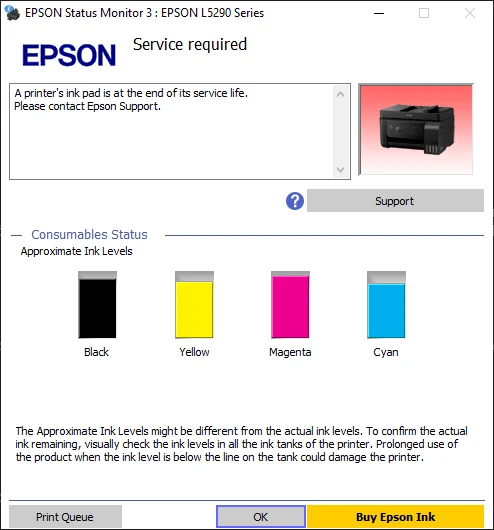
The L5290 has a small screen and shows errors as codes, not blinking lights. W-11 and W-14 warn that an ink pad is nearly full (press start to keep printing). E-11 and E-12 mean it is full, and printing stops. The L5290 answers over Wi-Fi but does not let its counter be read or reset that way, so connect it with a USB cable.
What the L5290 screen codes mean
Not every code is the ink pads. Only the rows marked “Yes” are fixed by resetting the counter.
| Code | What Epson says it means | Fixed by a reset? |
|---|---|---|
| W-11 | An ink pad is nearing the end of its service life. Press start to keep printing | Yes |
| E-11 | An ink pad needs to be replaced. Printing stops; scanning still works | Yes |
| W-14 | A borderless printing ink pad is nearing the end of its service life. Press start to keep printing | Yes |
| E-12 | A borderless printing ink pad needs to be replaced. Printing with a border still works | Yes |
| W-01 | Paper is jammed | No |
| E-01 | A printer error. Switch off and on; if it stays and there is no paper jam, contact service | No |
| E-02 | A scanner error. Switch off and on | No |
Source: Epson L5290 User's Guide (PDF): product status messages. Reading the counter for free tells you which counter is full.
Use a USB cable for the L5290
The L5290 answers over Wi-Fi but does not let the counter be read or reset that way. Connect it with a USB cable. If the tool finds the printer on Wi-Fi but cannot read the counter, the tool is not broken: plug in the cable and press Check Printer again.
Reset the L5290 on a Mac
The same app runs natively on macOS 11 or newer, on Intel Macs and Apple silicon (M1 and later), so you do not need Windows, Boot Camp or a virtual machine. Connect the L5290 with a USB cable (MacBooks with only USB-C ports need an adapter). The first time, macOS asks you to confirm in System Settings → Privacy & Security → Open Anyway. Mac guide with screenshots · Which Epson reset tools run on a Mac.
Measured, not assumed: by 1 November 2026, the reset reports our app sends back show the L5290 reset over USB on a Mac.
Looking for the Epson L5290 Adjustment Program?
The Epson Adjustment Program for the L5290 is Epson's service software for repair technicians: one program per model, Windows only, with many functions besides the counter (EEPROM settings, head ID, alignment). Copies passed around online come from unknown sources and may be for the wrong model or region. If the L5290 stops with the ink pad error, you only need its waste ink counters set back (Main pad, Platen pad, Ink system pad). VNIT Reset Tool does that one job, on Windows and Mac, and reading the counter is free. What the Adjustment Program is · How to spot an unsafe download.
Epson L5290 reset key
A reset key is the code that takes the L5290's waste ink counters to 0% in VNIT Reset Tool. It costs US$6, arrives by email in about a minute and does not expire. One key is one full reset on one printer, and it is used only when the reset has been written. Try the free check and the free trial first, so you know the tool can reach your L5290 before you pay. Keys for other tools, such as WIC Reset Utility, do not work here. Buy a key · How reset keys work.
How to reset the Epson L5290 ink pad counter
- 01Download VNIT Reset Tool and unzip itWindows 7–11 or macOS 11+. Unzip it first: running it from inside the zip causes errors. Screenshots of every step: on Windows · on a Mac.
- 02Connect the L5290 and press Check PrinterPlug in the USB cable. The L5290 cannot be read or reset over Wi-Fi. Switch the printer on. The tool shows the model, serial and each counter. The computer needs internet.
- 03Run the free trial, or enter your keyThe trial drops a 90%+ counter to 80%. A US$6 reset key takes it to 0%.
- 04Switch the printer off and on againSkip this and the printer still shows the old error.
Video: reset the L5290 step by step
48 seconds, no sound. Recorded in the tool's demo mode for the L5290: the example key and serial number are not real. Connect your printer with a USB cable.
What you will see
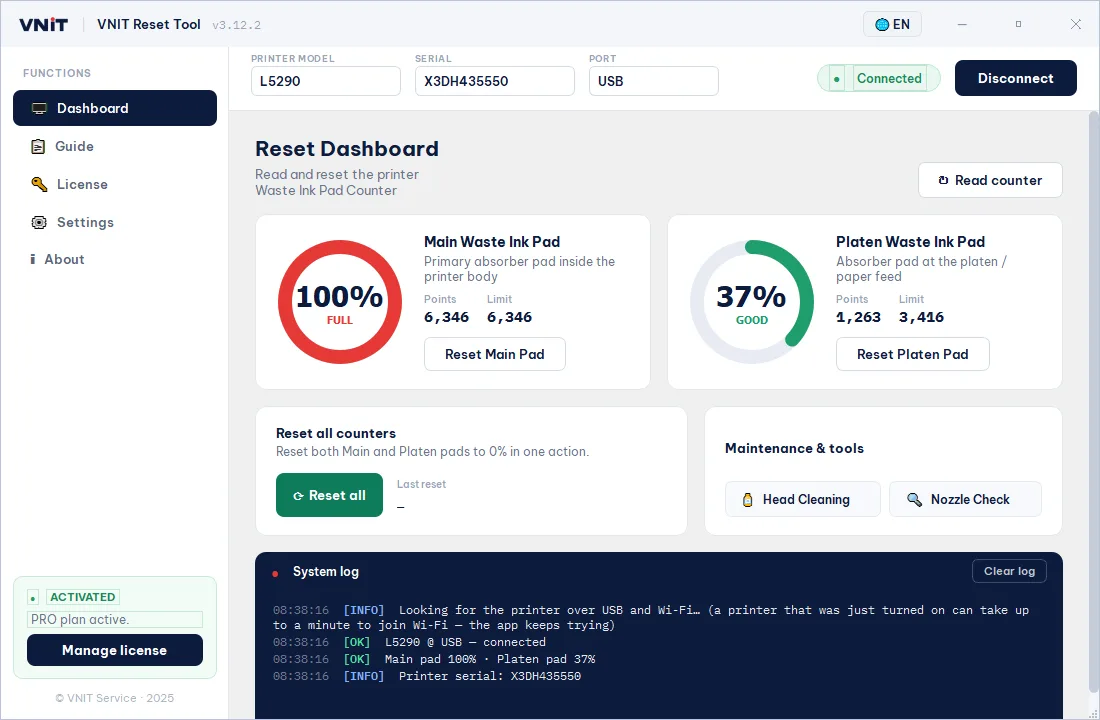
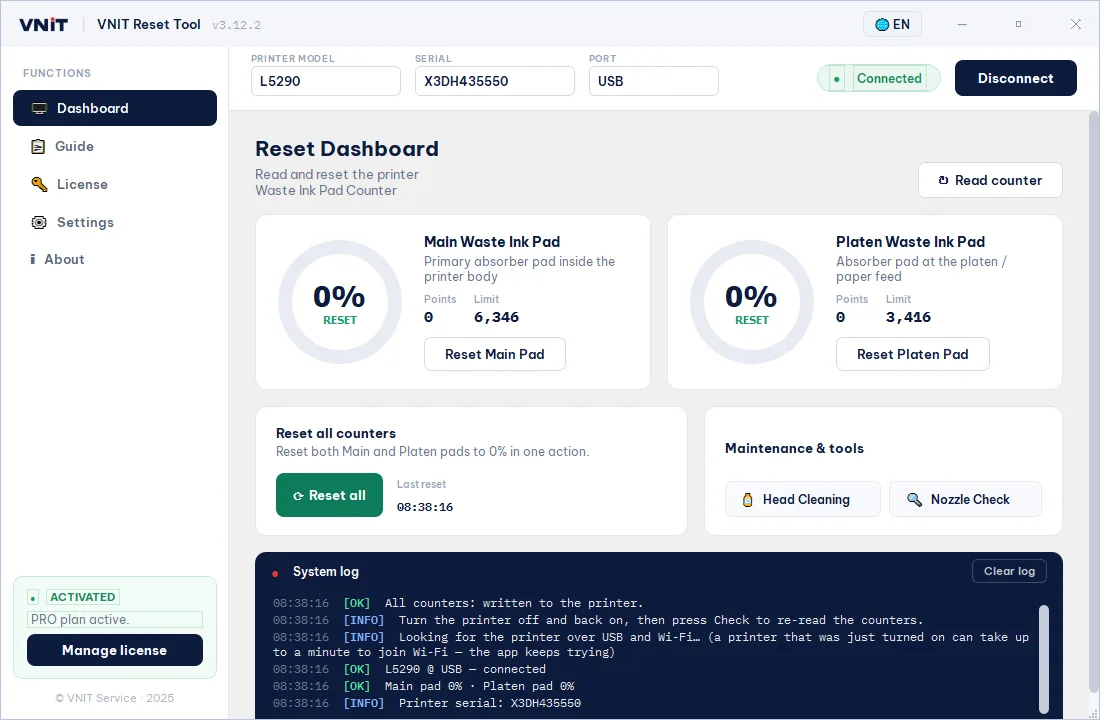
Screens from the tool's demo mode for the L5290. The serial number and counter values on your printer will be different.
After the reset: deal with the pads
The reset changes the counter, not the pads. If the L5290 has printed a lot, wash or replace the pads, or fit an external waste ink tank, so ink cannot overflow. How.
L5290 questions
My L5290 shows E-11. Can it be reset?
Yes. E-11 means the printer has counted enough ink to its pads to stop. Read the counter for free, then reset it with the free trial or a key, and check the pads.
Is there a free Epson L5290 resetter download?
The download is free, and so is reading all three L5290 counters. Each printer also gets one free trial reset when a counter is at 90% or more; a reset to 0% needs a key. Be careful with "L5290 resetter free download" archives on file-sharing sites: they are usually a copy of Epson's Adjustment Program with the key check removed, packed in a password-protected ZIP that antivirus cannot scan.
Which counters does the L5290 have?
Three: the Main pad, the Platen pad (used by borderless printing) and the Ink system pad. The tool shows each one as a percentage, and Reset all clears them in one go.
The screen also shows E-11 on a network report. Is that the same?
No. On the network connection report, E-11 is a network setup code. The ink pad E-11 appears on the printer's screen when printing stops.
The L5290 has a fax. Does that change anything for the reset?
Only which entry you pick. The L5290 installs two drivers on the same USB cable: EPSON L5290 Series (the printer) and one ending in FAX. The counter is read and reset through the printer one. On Windows, version 3.16.2 or newer skips the fax by itself; with an older version, choose the entry without FAX. The Printer not found guide has a section on printers with fax.
Is this the Epson L5290 Adjustment Program?
No. The Adjustment Program is Epson's Windows service software for technicians, one per model, with many service functions. VNIT Reset Tool only reads and resets the L5290's waste ink counters, on Windows and Mac, which is all the ink pad error needs.
The free trial worked. Do I still need a key?
Not straight away. The trial leaves the counter at 80%, so the error comes back sooner than after a full reset to 0% with a key.
My Epson L5290 stopped printing. Is it the ink pads?
It can be. When a waste ink counter reaches its limit, the printer stops printing until the counter is reset. Press Check Printer in VNIT Reset Tool to read the counter for free: if it is at or near 100%, that is the cause. If the counters are low, look elsewhere, such as the driver, the print queue or the print head.
Is this the same as "reset ink levels" or a factory reset on the L5290?
No. Resetting ink levels is about the ink tanks, and a factory reset puts settings such as the network back to default. Neither clears the waste ink counter. This page is about the waste ink counter only.
Same reset family as the L5290
These models share the L5290's counters and reset the same way (126 models).
Also in this family: ET-2802, ET-2803, ET-2804, ET-2805, ET-2806, ET-2808, ET-2810, ET-2811, ET-2812, ET-2813, ET-2814, ET-2815, ET-2816, ET-2818, ET-2820, ET-2821, ET-2822, ET-2823, ET-2824, ET-2825, ET-2826, ET-2828, ET-2860, ET-2861, ET-2863, ET-2865, ET-2870, ET-2871, ET-2873, ET-2875, ET-4800, L1210, L1216, L1218, L1219, L1230, L1236, L1238, L1239, L1250, L1256, L1258, L1259, L1270, L1276, L1278, L1279, L3200, L3201, L3203, L3205, L3206, L3207, L3208, L3209, L3210, L3211, L3213, L3215, L3216, L3217, L3218, L3219, L3230, L3231, L3233, L3235, L3236, L3237, L3238, L3239, L3250, L3251, L3253, L3255, L3256, L3257, L3258, L3259, L3260, L3261, L3263, L3265, L3266, L3267, L3268, L3269, L3270, L3271, L3273, L3275, L3276, L3277, L3278, L3279, L3280, L3281, L3283, L3285, L3286, L3287, L3288, L3289, L5296, L5298, L5310, L5316, L5318. All supported printers.